TL;DR: If you’re wondering how to schedule a text message, the good news is that both iPhone (iOS 18 and later) and most Android phones let you do it without installing anything extra. On iPhone, use the “Send Later” feature in the Messages app. On Android, Google Messages and Samsung Messages both have a built-in scheduler. A delayed text message like this works great for one-off, personal texts. But if you’re sending SMS to customers at scale, running campaigns, or automating reminders, you’ll outgrow your phone fast and need a dedicated SMS platform instead.
Ever written the perfect text, only to realize it’s 11 p.m. and definitely not the moment to hit send? Scheduling a message solves that problem in seconds.
Instead of setting a reminder and hoping you remember to send it tomorrow, you can write the message now and pick the exact date and time it goes out. Your phone handles the rest.
Not long ago, a delayed text message meant downloading a third-party app. Today, the feature lives right inside iOS and Android, so scheduling a text takes just a few taps.
In this guide, you’ll learn:
- how to schedule a text message on iPhone
- how to schedule a text message on Android
- what limits apply when you send text later from your phone
- when a business needs more than a phone’s built-in scheduler
Whether you want to send a birthday message at midnight, a meeting reminder, or plan out customer communication, there’s an approach here that fits.
How Do You Schedule a Text Message on iPhone?
You can schedule a text message on iPhone starting with iOS 18, thanks to the built-in “Send Later” feature in the Messages app. No extra apps needed. Just pick a date and time, and your scheduled SMS (or iMessage) goes out automatically.
One thing to know upfront: Send Later currently works with iMessage conversations. For standard green-bubble SMS, availability can depend on your carrier and iOS version.
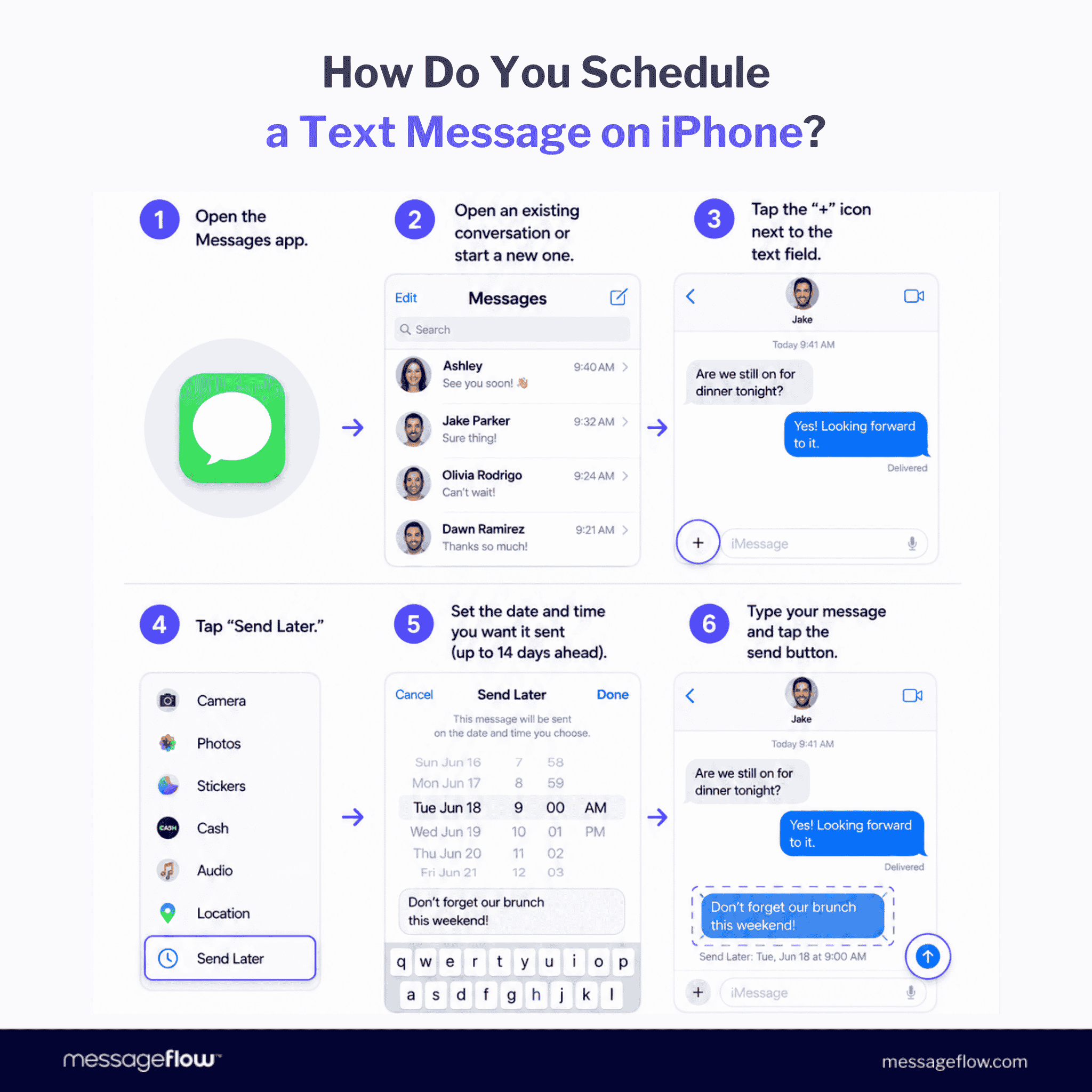
How to Schedule a Text Message on iPhone, Step by Step
To schedule an iPhone message:
- Open the Messages app.
- Open an existing conversation or start a new one.
- Tap the “+” icon next to the text field.
- Tap “Send Later.”
- Set the date and time you want it sent (up to 14 days ahead).
- Type your message.
- Tap the send button.
Once scheduled, the message sits in the conversation with a dashed border showing when it’ll go out. You can reschedule it or cancel it anytime before it sends by tapping “Edit” next to the scheduled message.
Will the Message Still Send If Your iPhone Is Offline?
According to Apple’s own documentation, scheduled messages are encrypted and held temporarily on Apple’s servers until they’re delivered, then removed. Your phone doesn’t need to be on or connected at the exact moment of sending.
So a delayed text message set up this way still goes out even if your iPhone is briefly offline. It sends as soon as the device reconnects to a network.
How Do You Schedule a Text on an Older iPhone (iOS 13 to 17)?
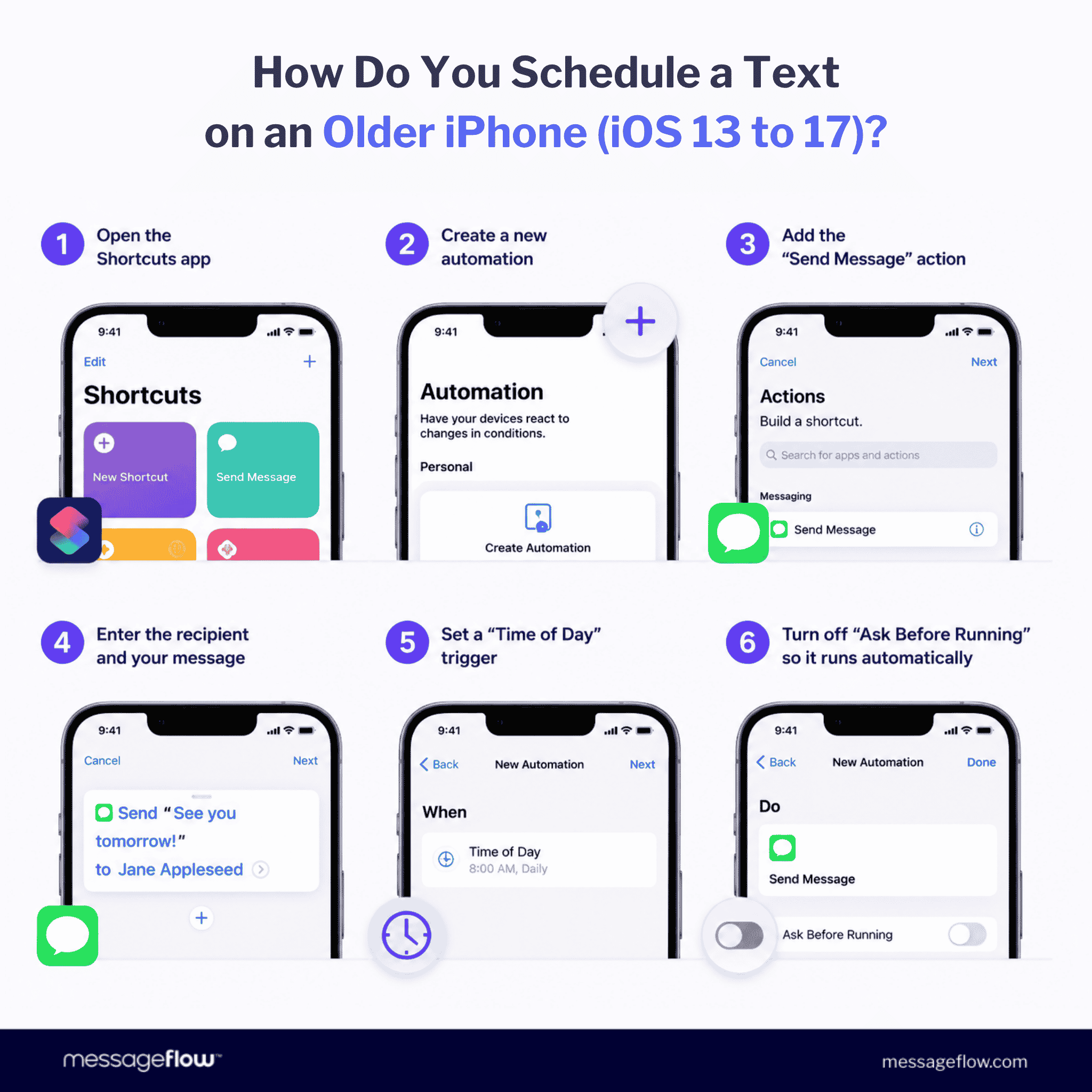
If your iPhone runs iOS 13 through 17, you won’t find “Send Later” in Messages. You can still send text later, though, using the Shortcuts app.
Here’s how to schedule SMS with Shortcuts:
- Open the Shortcuts app.
- Create a new automation.
- Add the “Send Message” action.
- Enter the recipient and your message text.
- Set a “Time of Day” trigger for when you want it sent.
- Turn off “Ask Before Running” so the automation fires on its own.
It works, but it’s clunkier than the native iOS 18 feature. Automations can misbehave if your phone is in low-power mode or under certain system restrictions.
That said, Shortcuts has one real advantage: there’s no 14-day cap, so you can plan a message much further in advance. But if your iPhone runs iOS 18 or later, “Send Later” is still the simplest way to schedule a text message on iPhone.
How Do You Schedule a Text Message on Android?
Message scheduling comes built into the most popular Android texting apps, including Google Messages and Samsung Messages. Both let you set an exact date and time for a scheduled SMS. The steps differ slightly depending on your phone’s manufacturer.
How to Schedule a Text in Google Messages
To schedule a text message in Google Messages:
- Open Google Messages.
- Open an existing conversation or start a new one.
- Type your message.
- Press and hold the Send button.
- Pick one of the suggested times, or choose your own date and time.
- Confirm by tapping Send.
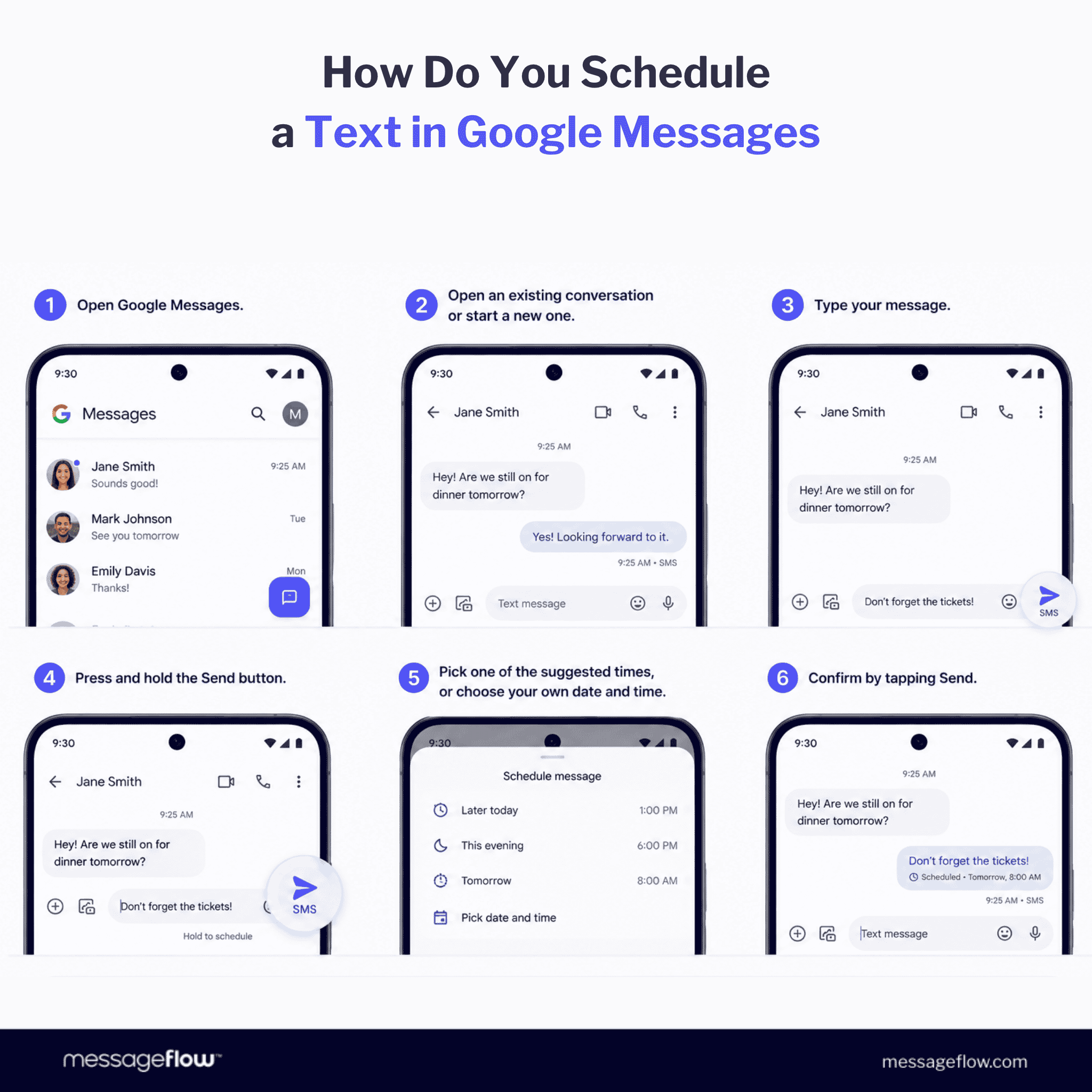
Once it’s scheduled, you’ll see a label in the conversation marking it as a scheduled message, along with the delivery time.
Per Google’s support documentation, if your phone isn’t connected to Wi-Fi or mobile data at the scheduled time, the delayed text message goes out automatically once you reconnect.
Until it sends, you can open the conversation and see a “Scheduled message” notification, which makes it easy to keep track of anything pending.
How to Schedule a Text in Samsung Messages
On Samsung phones running Samsung Messages, the process looks a little different but is just as simple.
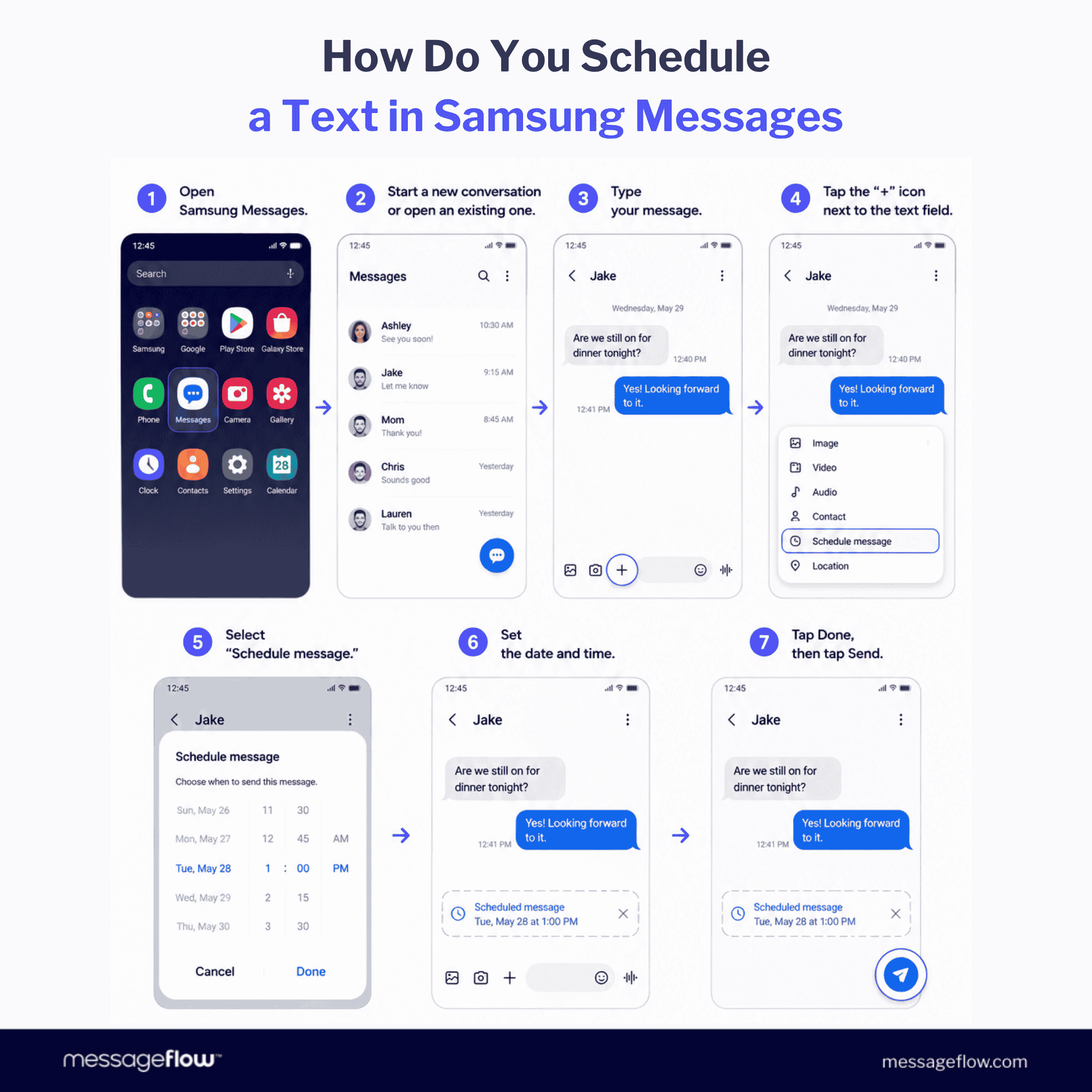
To schedule SMS on Samsung Messages:
- Open Samsung Messages.
- Start a new conversation or open an existing one.
- Type your message.
- Tap the “+” icon next to the text field.
- Select “Schedule message.”
- Set the date and time.
- Tap Done, then tap Send.
Your phone sends the message automatically at the time you picked.
Can You Edit or Cancel a Scheduled Text?
Yes. Both Google Messages and Samsung Messages let you manage scheduled texts right up until they send. You can change the date or time, edit the content, send it immediately, or cancel a delayed text message altogether.
Just open the conversation, tap the scheduled message, and choose the option you need.
Are There Any Limits to Scheduling Texts on Android?
The built-in scheduler works well for one-off messages to friends, family, or coworkers.
But if you need to message a lot of people at once, run marketing campaigns, set up recurring sends, or manage communication across time zones, your phone’s scheduler hits its ceiling fast. That’s where a dedicated SMS platform with real scheduling, segmentation, and automation earns its keep.
How Do Businesses Schedule SMS at Scale?
A phone’s scheduler is fine for a single text. Business needs look completely different. Companies plan campaigns reaching thousands of people, automate communication, segment their audience, and track results in real time. That’s why they rely on dedicated communication platforms instead of a smartphone app.
Take an online retailer prepping for a Black Friday sale. During peak periods like this, message volume can run 5 to 10 times higher than a normal day.
Instead of scheduling each message one by one, a marketing team builds a single campaign, sets the send date and time, and the SMS platform delivers it to every recipient automatically. The send time can even adjust to each customer’s local time zone, so everyone gets the message at the same point in their day, no matter where they are.
Staying Reliable During Peak Traffic
The hard part isn’t scheduling the campaign. It’s delivering it reliably when traffic spikes.
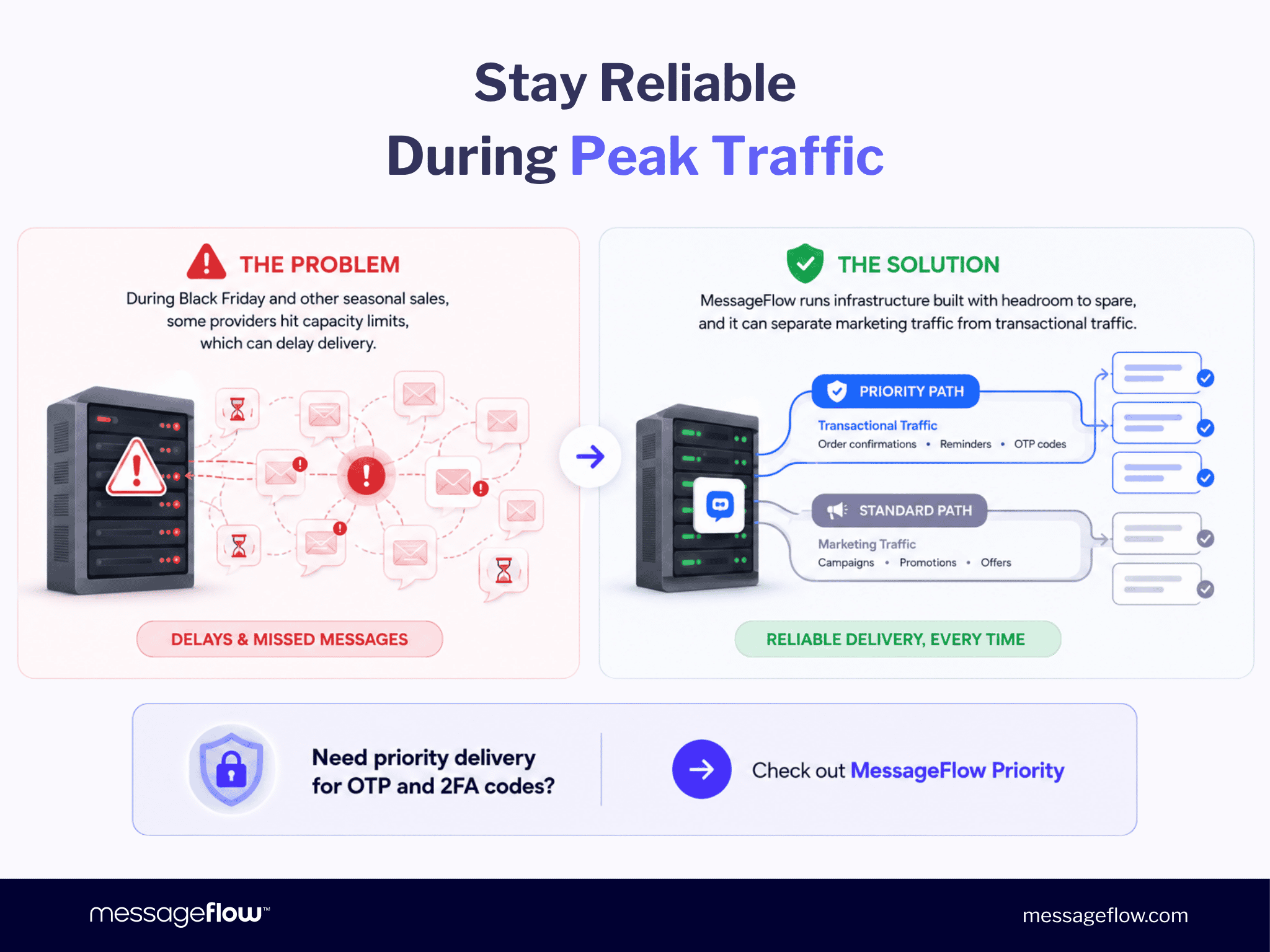
During Black Friday and other seasonal sales, some providers hit capacity limits, which can delay delivery.
MessageFlow runs infrastructure built with headroom to spare, and it can separate marketing traffic from transactional traffic. That means order confirmations, reminders, and one-time OTP codes go out on a priority path instead of competing with marketing campaigns for system resources.
💡 Need priority delivery for OTP and 2FA codes? Check out MessageFlow Priority.
Automating Communication Through an API
Businesses rarely schedule messages by hand. Communication usually fires automatically when something happens, like:
- an order is placed
- a shipment status changes
- a payment is coming due
- an appointment is booked
- a one-time OTP code needs to go out
💡 With SMS API integration, developers can build scheduled sending directly into a CRM, online store, or mobile app, removing manual scheduling from the picture entirely.
Lower Costs Through Cross-Channel Communication
Business platforms aren’t limited to SMS.
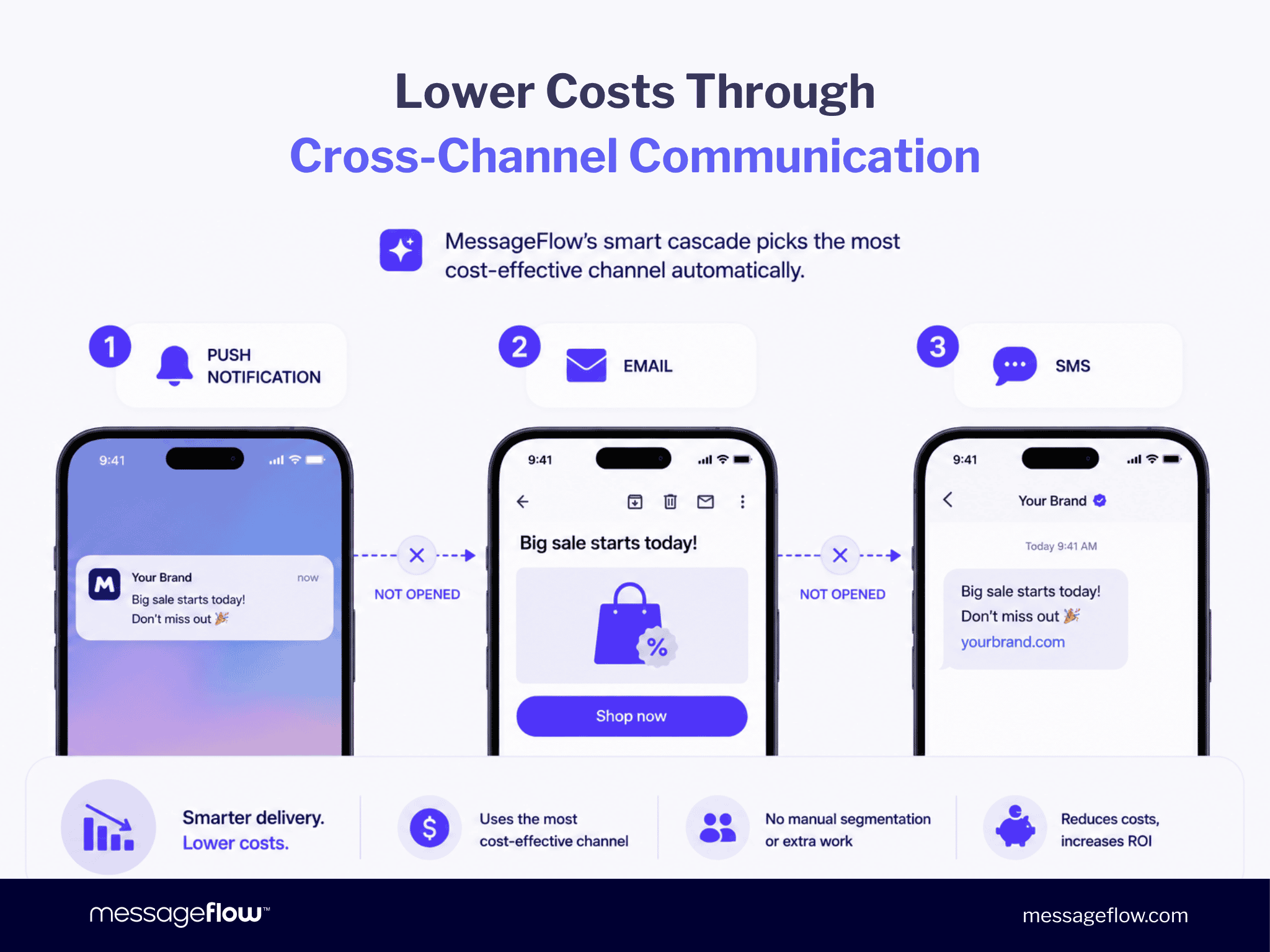
MessageFlow’s smart cascade automatically picks the most cost-effective channel for each message. A typical flow might look like this:
- the customer gets a push notification
- if they don’t open it, the system sends an email
- only as a last resort does it send an SMS
This approach cuts campaign costs without anyone manually splitting recipients into groups.
💡 Client results back this up. MessageFlow has powered interactive RCS & SMS campaigns for brands like home&you, using product carousels and rich media that outperform a plain text send. Read the full case study.
Communication That Meets Regulated Industry Standards
For banks, fintechs, insurers, and healthcare providers, compliance matters as much as performance.
MessageFlow processes data in infrastructure located in Poland and Germany, with GDPR, NIS2, and DORA compliance built into the platform. That means organizations don’t need to bolt on extra compliance layers or use separate tools for the European market.
One Platform Instead of Several Vendors
At a lot of companies, customer communication is scattered across separate vendors: one for email, one for SMS, one for push, one for chat apps.
MessageFlow brings all the main channels together, including SMS, email, Mobile Push, RCS, and Viber.
It all runs on one REST API, one dashboard, and one integration model. For IT teams, that means fewer systems to maintain, fewer integrations, and a single point of contact for support.
What Can’t a Phone’s Built-in Scheduler Do?
Scheduling a text on your phone is great for personal SMS, but it wasn’t built for business communication.
A dedicated SMS platform like MessageFlow lets you:
- schedule campaigns to thousands of recipients at once
- automatically match send time to each recipient’s time zone
- trigger communication based on real events
- segment your audience
- manage cross-channel communication from one place
- monitor campaign performance
- maintain high service availability (SLA 99.98%)
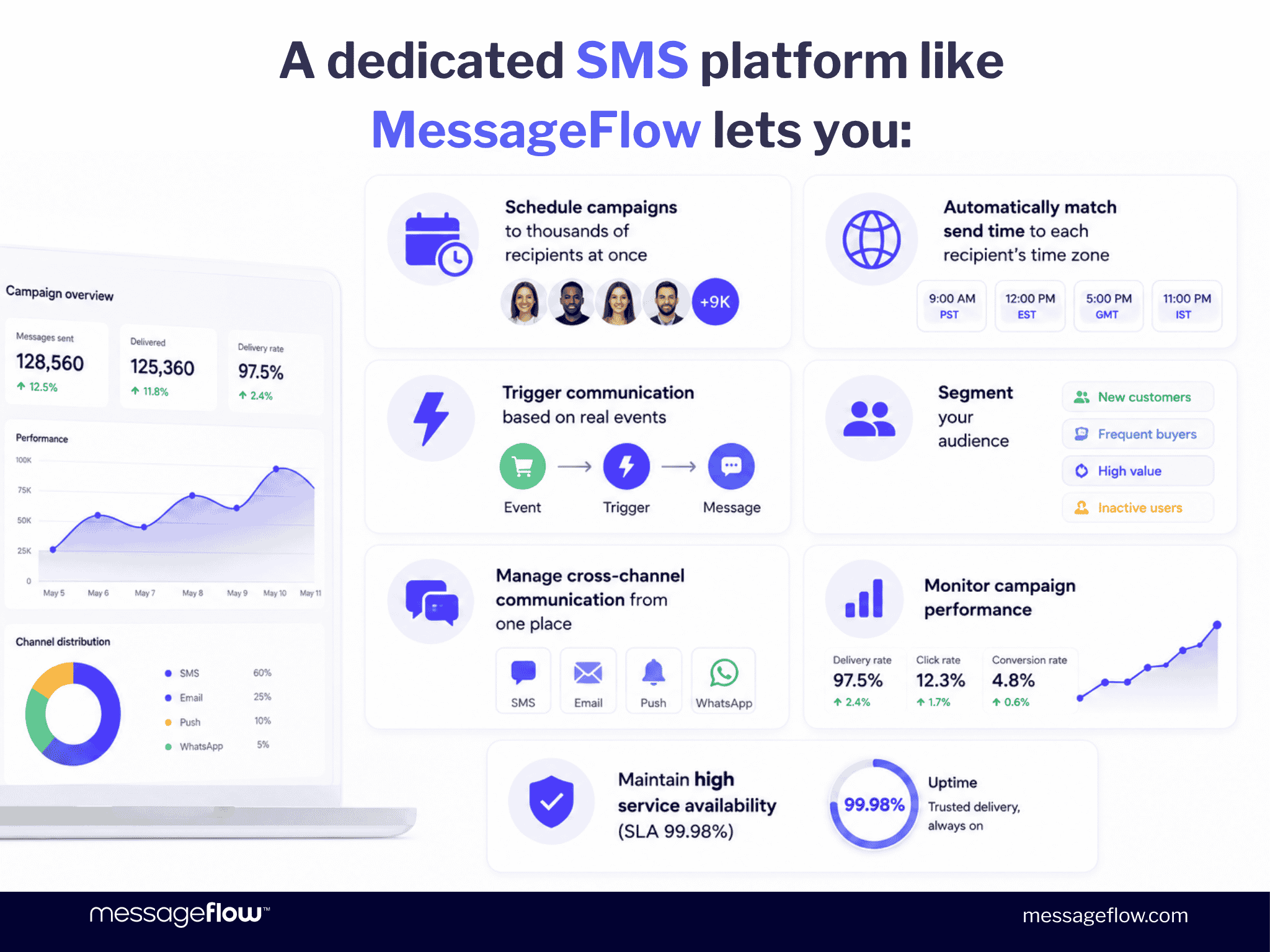
That means businesses can plan communication ahead of time, automate the process, and trust that both marketing campaigns and transactional messages arrive when they should.
When Is the Right Time to Send a Scheduled Text Message?
Scheduling the message is only half the job. Picking the right moment to send it matters just as much.
Timing research on SMS sends consistently points to specific windows performing better than others. Based on an analysis of over 38 million messages, the strongest click-through window for scheduled SMS campaigns lands in the late afternoon and early evening.
Time of day matters, but so does what kind of message you’re sending. Reminder-style texts tend to land well earlier in the day, while promotional offers often perform better once people have wrapped up work and are deciding what to buy or do next. MessageFlow’s own guide on choosing the best time for SMS campaigns breaks this down by use case and industry.
Late-night sends are risky no matter how good the offer is. In the United States, the Telephone Consumer Protection Act (TCPA) restricts marketing calls and texts to between 8 a.m. and 9 p.m. in the recipient’s local time.
Sending outside that window isn’t just bad practice, it’s a compliance risk. In the EU, GDPR and national telecom rules play a similar role, which is exactly why a platform that tracks marketing consent and enforces sending windows automatically takes that risk off your team’s plate.
💡 For more on the difference between transactional and promotional SMS, and which timing rules apply to each, check out MessageFlow’s full breakdown.
Wrapping Up: How to Schedule a Text Message
Both iPhone and Android build message scheduling into their default apps, so setting up a single text takes seconds. For everyday, personal use, that’s more than enough.
Things change once your recipients are customers instead of friends. A phone’s built-in tools can’t schedule campaigns to thousands of people, automate communication, handle recurring sends, or let a team manage messaging together.
That’s where a platform built for business communication comes in. MessageFlow lets you plan SMS, email, RCS, and mobile push campaigns from one place, automatically accounts for time zones, supports compliance with current regulations, and connects directly to your systems through an API.
💡 If you’re looking for a way to schedule SMS campaigns, set up automated reminders, or run cross-channel communication, book a free MessageFlow demo. We’ll show you how to plan and automate messaging to thousands of recipients from a single dashboard, reliably, compliantly, and without unnecessary complexity.
How to Schedule a Text Message: Frequently Asked Questions
Yes. If you’re on iOS 18 or later, you don’t need any extra apps. The “Send Later” feature is built right into the Messages app. Tap the “+” icon, choose “Send Later,” then set your date and time. On older iOS versions, you can use the Shortcuts app instead to send text later.
On iPhone, the native feature caps scheduling at 14 days ahead. On Android, Google Messages and Samsung Messages don’t set a hard limit and let you pick any future date from a calendar. Business SMS platforms can schedule campaigns weeks or months out.
No. A scheduled text message looks exactly like any other message to the person receiving it. There’s no label or indicator showing it was prepared ahead of time or sent automatically.
Not using the native tools on iPhone or Android. Those only work from the phone itself. If you use iMessage on a Mac, you can send messages, but scheduling isn’t currently supported there. For scheduling campaigns from a browser, a business SMS platform is the better fit.
It depends on the OS. On iPhone, a delayed text message or iMessage is delivered once the device reconnects, since Apple temporarily holds scheduled messages on its own servers. On Android, the scheduled message sends once the phone regains a data or cellular connection. If the phone stays off for a while, delivery happens after it’s powered back on.