
A shopper opens your app for the first time and sees “Allow notifications?” before they’ve browsed a single product. Now put that request one step further: the shopper has found the shoes they want, selected their size, and tapped “Notify me when it’s back”. The phone asks the same question. This time, the shopper knows exactly what saying yes will do. It’s recommended to ask for notification permission when the action someone has just taken makes the benefit clear.
That restock request also tells you something about the audience you’ve gained. The shopper wants an alert about one pair of shoes. When your team plans a weekend sale, it needs to know who has chosen to receive offers, whose phone still allows notifications, and which devices it can reach. A mobile push notification opt-in rate tells you how often people say yes when asked. The number that matters when you schedule the sale is how many shoppers can receive that offer.
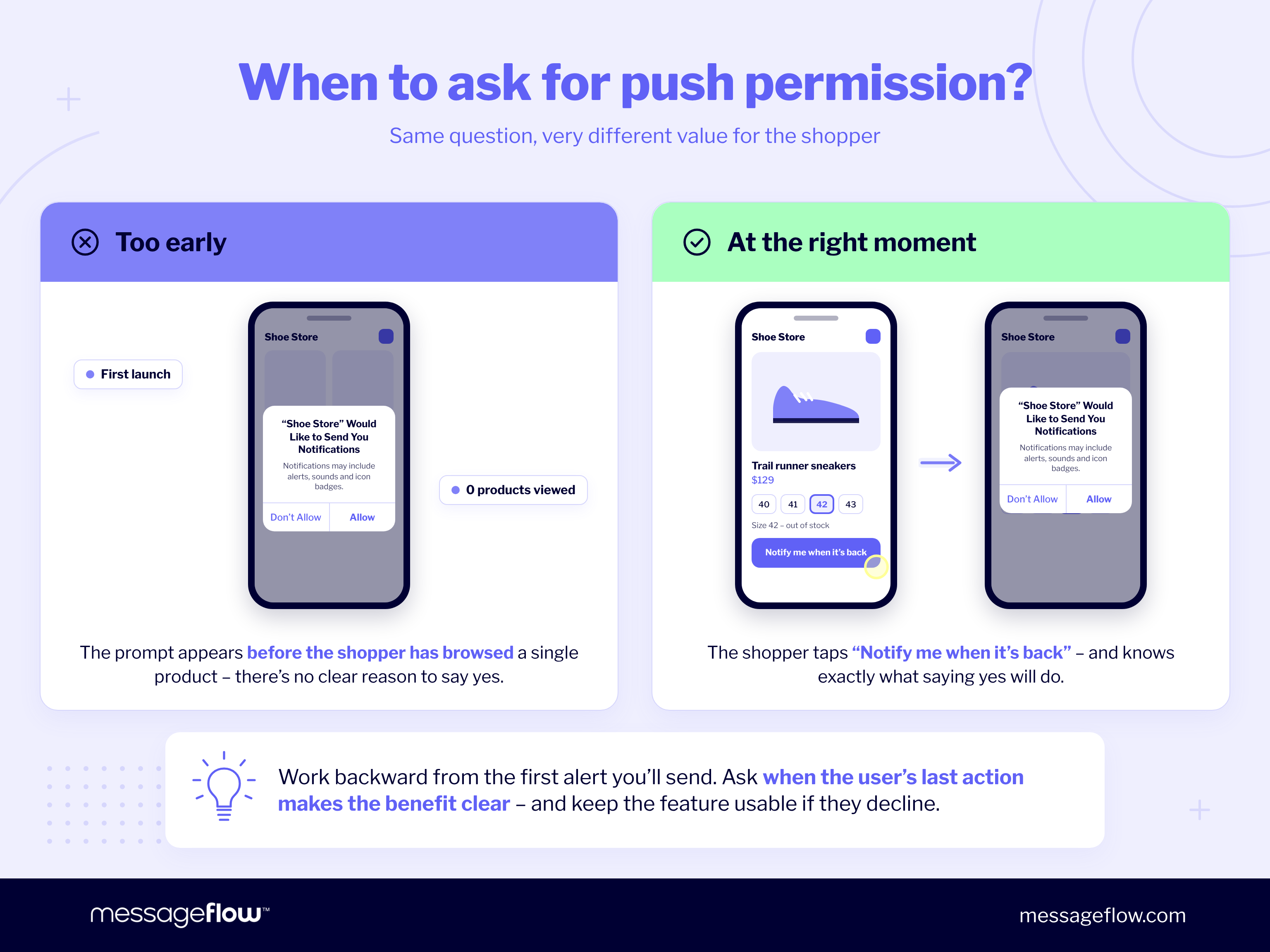
When to ask users to enable push notifications
Start with the first alert you expect to send and work backward to the action that makes it useful. For an airline, that might be a gate change. A passenger who has just added a flight to the app has a reason to want that alert, even on their first visit. Someone comparing fares on their fifth visit may still have little reason to enable it. Session count alone tells you little about whether the timing is right. It’s best to ask when the user can understand what notifications will do for them.
Permission priming means explaining what someone can expect before the phone displays its permission prompt. A line on the relevant screen can do the job. On the boarding pass, the airline might offer “Get alerts if your gate or departure time changes” with a button labeled “Enable flight alerts”. Tapping it opens the system prompt. If the passenger already tapped a control labeled “Notify me about gate changes”, go straight to the prompt. The control itself has supplied the explanation.
Keep the underlying task available whichever choice the user makes. A passenger who declines should still be able to open the boarding pass and check the gate. Leave “Flight alerts” accessible from the trip details so they can revisit the decision when it matters to them.
How push permissions work on iOS and Android
A passenger who taps “Enable flight alerts” might see a permission prompt, need to change a setting, or already have alerts enabled. Check the device’s current notification settings before deciding what the app should show next.
iOS offers explicit and provisional authorization
With an explicit request, iOS asks the user whether to allow notifications and remembers the answer. If the passenger declines and later tries to enable flight alerts, repeating the request won’t reopen the prompt. At that point, offer a link to the app’s notification settings so the passenger can change their choice.
With provisional authorization, iOS lets the app deliver trial notifications before asking for an explicit opt-in. They appear quietly in Notification Center history, without a banner, sound, or lock-screen alert. The recipient can decide whether to keep receiving them. That makes provisional delivery a reasonable way to preview a weekly activity summary. For a last-minute gate change, a passenger could easily miss the update.
Android gives users control by notification category
On a fresh install running Android 13 or later, ordinary app notifications start turned off. Apps targeting Android 13 or later can choose when to request the POST_NOTIFICATIONS permission. The user can allow notifications, decline, or swipe the prompt away. A swipe leaves the permission unchanged, so record it separately from an explicit refusal when evaluating the prompt.
Android also lets people control individual notification channels, the categories an app defines for its alerts. An airline that creates separate channels for flight updates and fare deals gives passengers a useful choice: they can keep gate changes switched on and silence offers. For the team planning a fare campaign, that means an app-wide permission count can overstate how many devices can display the offer.
Transactional and marketing push notifications
“Your order is ready for pickup” helps a customer complete a purchase they’ve already made. Add “Take 20% off a second pair when you visit” and the same notification now promotes another sale. The pickup event can trigger either version, so review the actual copy when deciding who should receive it. Send the pickup update to customers expecting order alerts. Reserve the discount for customers who have opted in to offers.
Give people that choice in the app, using labels they’ll recognize, such as Order updates and Offers and discounts. Device permission determines whether the phone can display notifications. The in-app preference records which messages the customer wants. On iOS, Apple requires an explicit in-app opt-in for promotional push notifications and an in-app way to opt out. A customer who switches off offers should still be able to receive the pickup alert they requested.
Personalizing an offer introduces a third question: what allows you to use the customer’s data for that purpose? If you select recipients using purchase history, have your privacy team verify that use for the markets you serve. For example, California requires businesses covered by the CCPA to tell consumers, at or before collection, which categories of personal information they collect and why. A device permission, a marketing preference, and a privacy notice each serve a different purpose.
How to keep push registrations up to date
When a customer replaces their phone and signs back into your app, your messaging platform can end up with two registrations for the same person. The new phone may be reachable while the old one sits in a drawer. Keeping a registration record for each app installation lets you retire the old address without interrupting alerts on the new phone.
Update the registration when the app reports in. A push token gives the delivery service an address for your app on a particular device. Apple instructs apps to register with its push service at each launch and send the current token to their server. When an installation reports a replacement token, update its existing record. Store the date the app last confirmed its registration, even if the address stayed the same.
Track changes in device permission separately. Someone can turn off alerts in their phone settings while your platform still holds a current token. When the app next opens, check the device’s notification settings and sync any change. If alerts are off, exclude that installation from campaigns that need to display a notification. The customer may still have alerts enabled on another device.
Distinguish an inactive registration from an invalid one. If Apple returns 410 Unregistered, stop sending to that registration unless the app registers it again. Inactivity calls for a different decision. Firebase flags registrations as stale after more than a month without a connection to its messaging service. For a travel app that customers may open only a few times a year, it makes sense to exclude stale registrations from estimates of current reach while preserving the traveler’s alert preferences for their next trip.
How to measure growth in your reachable push audience
Moving the permission prompt later in onboarding can raise your push notification opt-in rate while reducing the number of people who enable alerts. To judge the change, track both how often people accept the prompt and how many new installations reach it.
Suppose a retailer tests two prompt timings over the same 14-day period. Each group starts with 10,000 new installations, and each installation counts once.
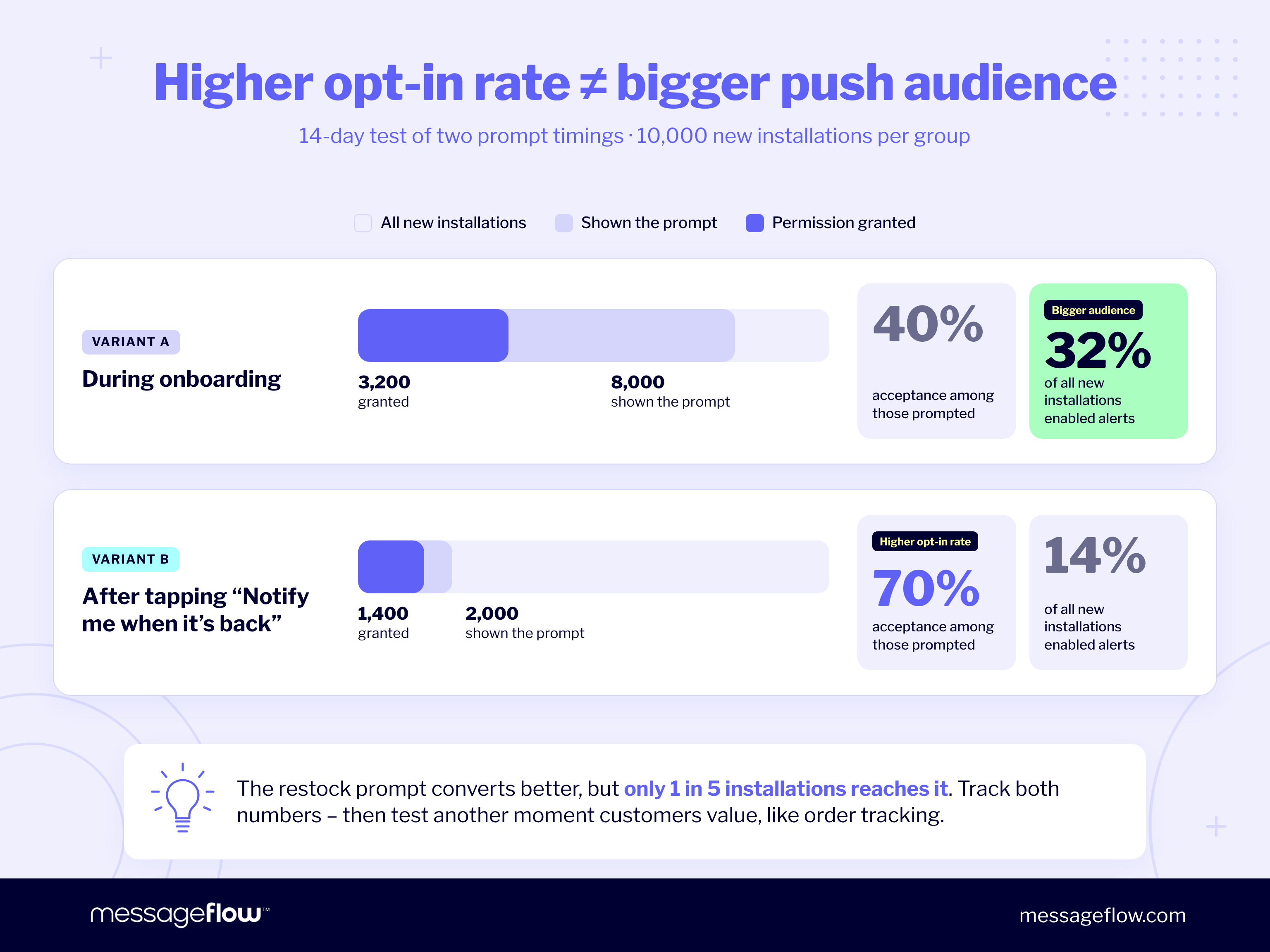
In this example, the restock prompt earns a higher acceptance rate, but only one in five installations reaches it. If the retailer wants to grow its audience, a useful next test would be to offer alerts at another moment customers value, such as when they choose to track an order. That gives more people a relevant opportunity to opt in.
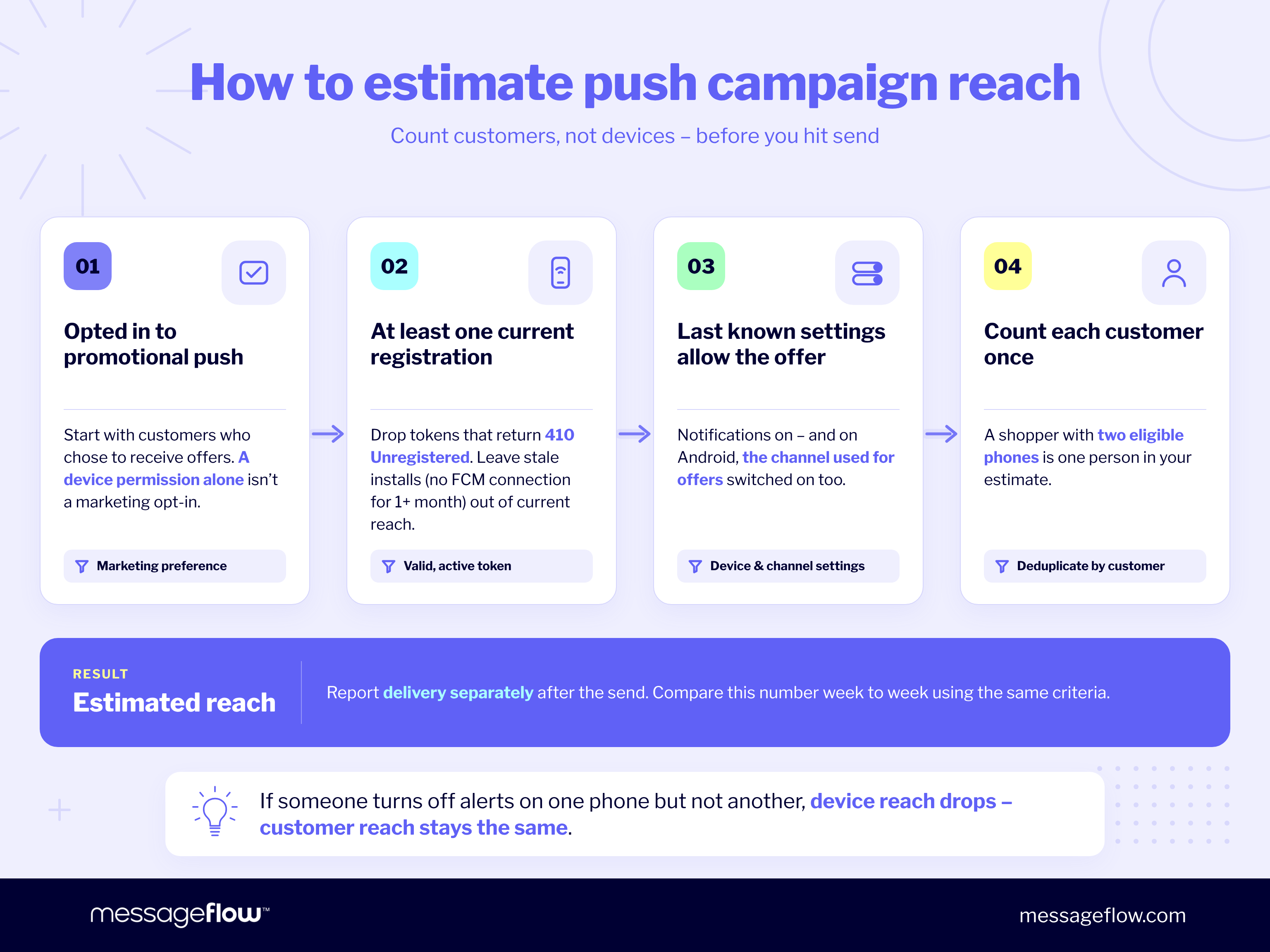
For the weekend sale, the starting point is the number of distinct customers eligible for that offer. Select customers who have opted in to promotional push, then count each customer once if they have at least one current registration whose last known settings allow the offer to appear. A shopper with two eligible phones counts as one person. Label this figure estimated reach and report delivery separately after the send.
To track growth, compare that eligible audience from week to week using the same criteria. Record how many customers became eligible and how many lost their last eligible device or opted out of offers. If someone disables alerts on one phone but can still receive them on another, device reach falls by one while customer reach stays the same. That distinction tells you whether a change in the dashboard affects how many shoppers your next campaign can reach.
Plan your next push campaign with MessageFlow
How many customers could receive your next back-in-stock alert or weekend offer? Bring one campaign to a MessageFlow expert to discuss where to ask for opt-in and how to estimate your reach before you send.