
TL;DR
- A WhatsApp Business account (WABA) is the official business identity required to message customers on WhatsApp, whether through the free app or the paid API.
- Two paths exist: the free WhatsApp Business App (best for small teams) and the WhatsApp Business API via a BSP (built for scale, CRM integration, and EU compliance).
- Your choice depends on team size, daily message volume, and regulatory requirements, not just budget.
- This guide walks you through both setup paths, step by step.
More than 175 million people message a WhatsApp Business account every single day (source: Meta, October 2020; the most recent officially confirmed figure). If your business isn’t among them, you’re missing the channel where your customers already expect to hear from you.
The problem: when it comes to actually setting one up, the confusion starts fast. Is the free app enough? What’s a WABA? Do you need an API? If you’ve searched for answers and come back more confused than before, this guide cuts through the noise.
What Is a WhatsApp Business Account?
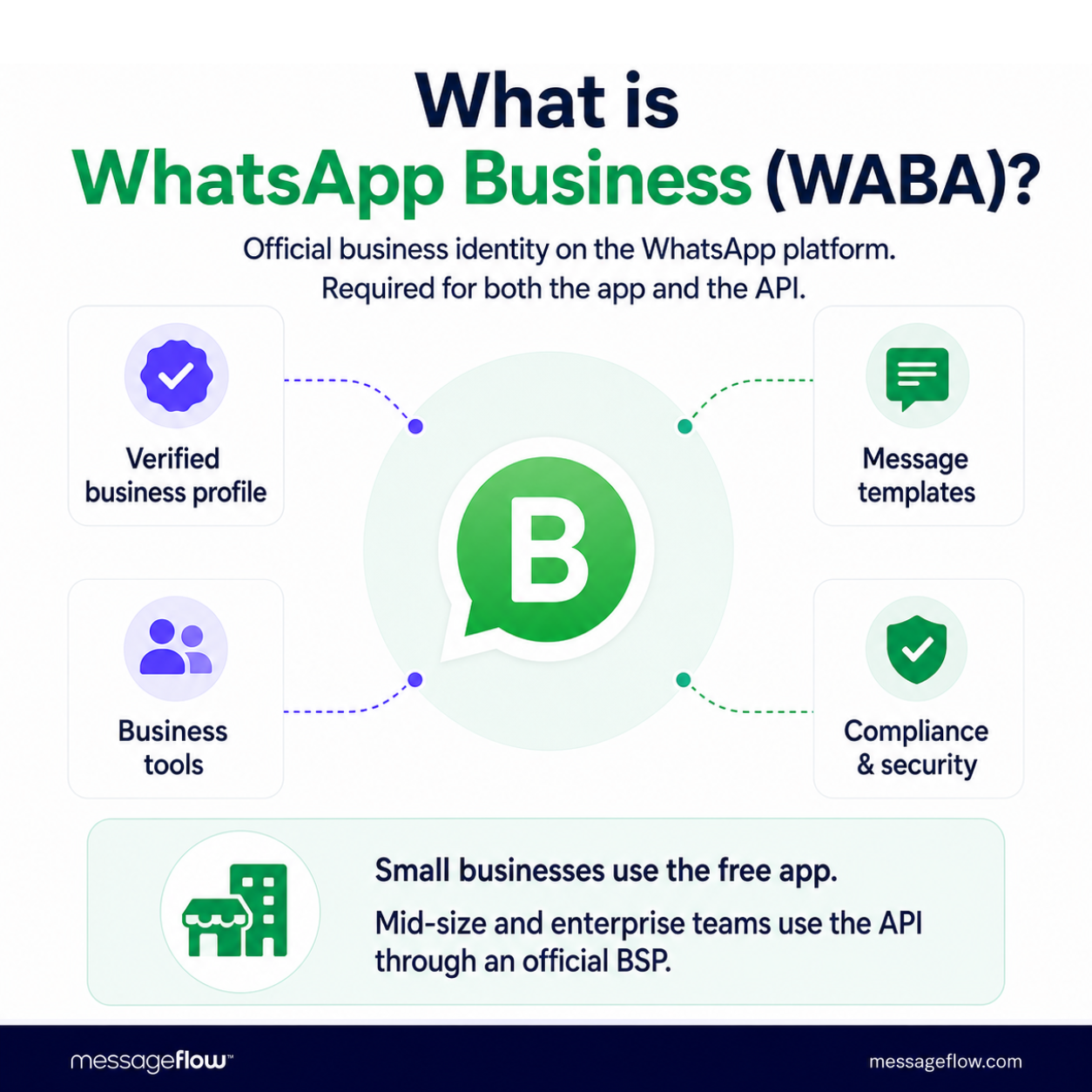
A WhatsApp Business account (WABA) is the official business identity structure on the WhatsApp platform, required to send and receive messages commercially. It applies whether you use the free mobile app or the enterprise-grade API. Small businesses typically create one through the WhatsApp Business App; larger organizations build theirs in Meta Business Manager and connect via an authorized Business Solution Provider (BSP).
To learn what your business actually gains from having one, read our full breakdown of the benefits of a WhatsApp Business account.
WABA vs. personal WhatsApp: key differences
- Personal WhatsApp cannot be used commercially and violates Meta’s Terms of Service if you try.
- A WABA gives you a verified business profile, automated messaging, and access to business tools.
- A WABA via API adds unlimited agents, CRM integrations, and EU regulatory compliance.
The three versions of WhatsApp for business
- WhatsApp Business App: free mobile app for small businesses; one active user per phone number.
- WhatsApp Business Platform (API): paid enterprise platform, accessible only through an authorized BSP like MessageFlow.
- Personal WhatsApp: not permitted for commercial use; Meta actively disables accounts that violate this rule.
WhatsApp Business App vs. WhatsApp Business API: Which One Do You Need?
Before you start any setup, answer one question: how many customer conversations do you need to handle simultaneously, and does your business operate in the EU?
The table below gives you a clear answer in under a minute.
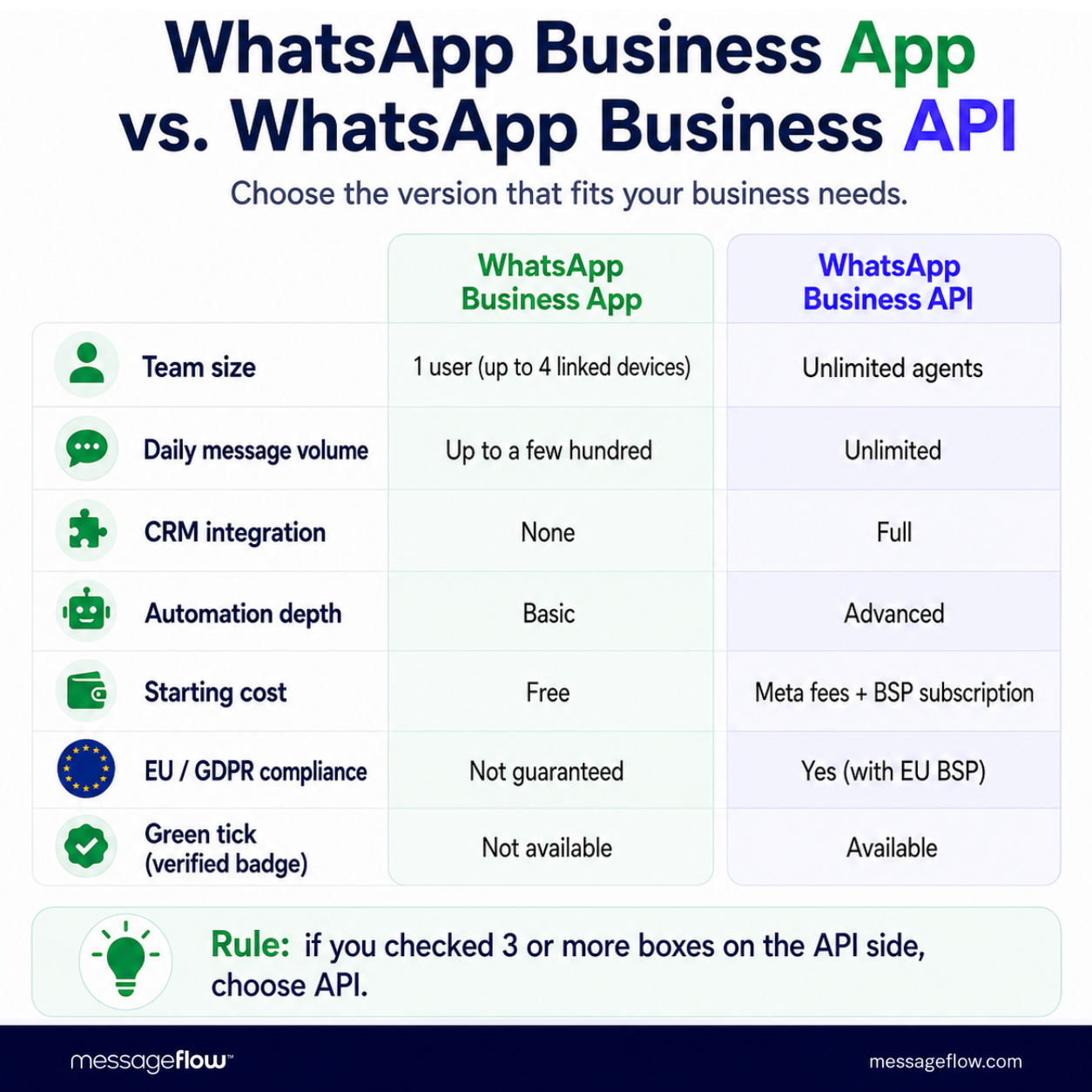
Decision table: 7 criteria
| Criteria | WhatsApp Business App | WhatsApp Business API |
|---|---|---|
| Team size | 1 user (up to 4 linked devices) | Unlimited agents |
| Daily message volume | Up to a few hundred (no automation) | Unlimited |
| CRM integration | None natively | Full (Salesforce, HubSpot, custom) |
| Automation depth | Basic (auto-reply, quick replies) | Advanced (chatbots, AI workflows) |
| Starting cost | Free | Meta per-conversation fees + BSP subscription |
| EU / GDPR compliance | Not guaranteed | Yes, with a EU-based BSP and DPA in place |
| Green tick (verified badge) | Not available | Available via official Meta process |
Decision rule: if you checked three or more boxes in the API column, go straight to Path B in the next section.
WhatsApp Business App: who is it for?
The app works well when:
- your team handles up to a few dozen conversations per day,
- one dedicated person can cover your WhatsApp channel,
- you don’t need integrations with external CRM systems,
- you’re testing the channel before committing budget.
Browser access: WhatsApp Business Web is available at web.whatsapp.com and requires pairing with the mobile app.
WhatsApp Business API: who is it for?
The API is the right path when:
- you’re handling dozens or hundreds of conversations daily,
- multiple agents or bots need to work the channel simultaneously,
- you operate in the EU and need to meet GDPR requirements,
- you want the green verification tick on your brand profile.
The API is only accessible through an authorized BSP. MessageFlow is an official WhatsApp BSP. See how WhatsApp compares to SMS for business if you’re weighing channel options.
In Q4 2025 alone, WhatsApp paid messaging generated more than $800 million in revenue for Meta, confirming that the enterprise API market is growing fast (source: Meta Platforms Q4 2024 Earnings Report, SEC Form 8-K).
How to Create a WhatsApp Business Account (Step-by-Step)
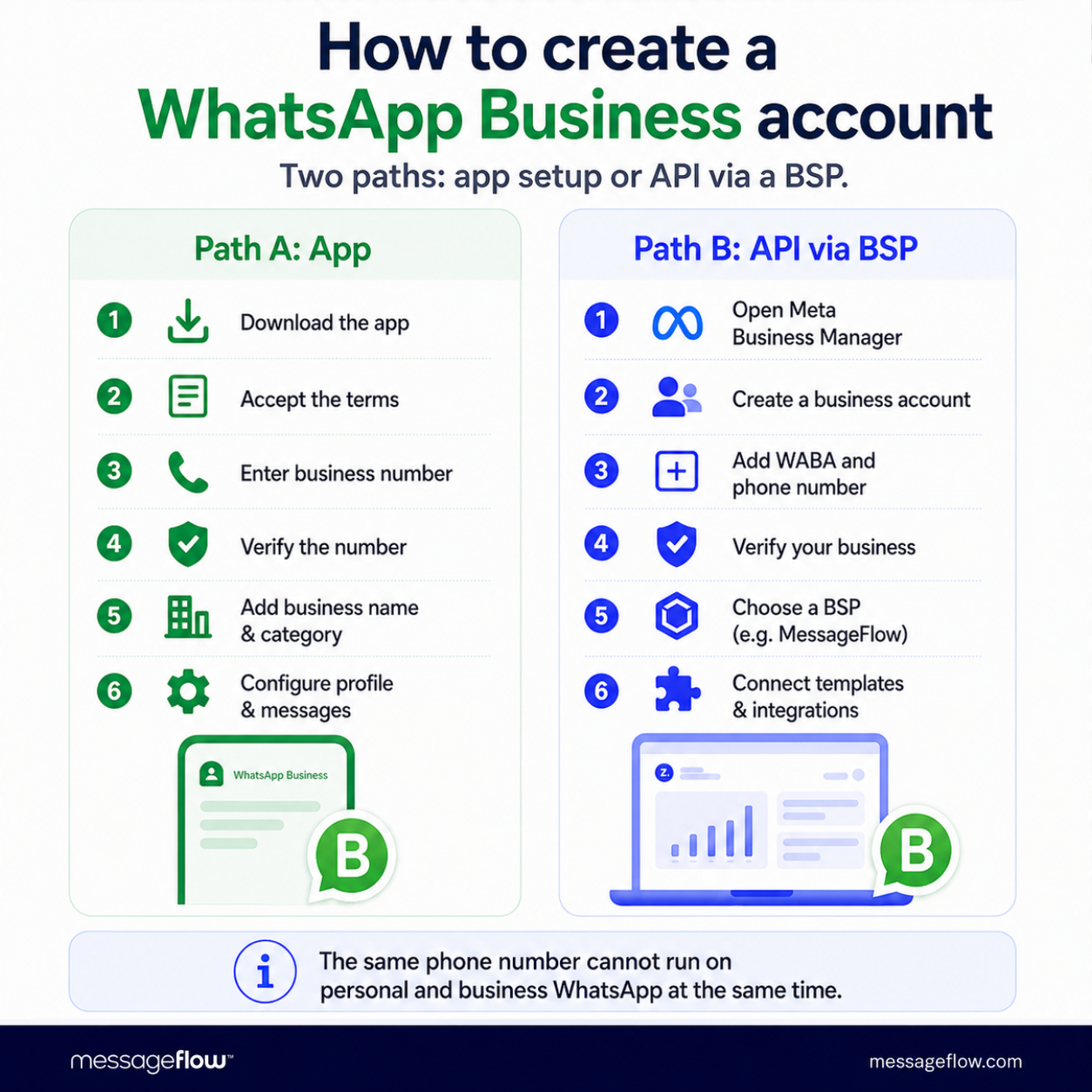
Path A: Creating an account via the WhatsApp Business App
- Download the WhatsApp Business app from Google Play or the App Store. Search specifically for “WhatsApp Business”; it’s a separate app from standard WhatsApp.
- Accept the Terms of Service on first launch. Before accepting, check the WhatsApp Commerce Policy: certain business categories (alcohol retail, weapons, unlicensed financial services) are not permitted on the platform.
- Enter your business phone number. This can be a mobile or landline number. Note: if that number is currently registered on personal WhatsApp, it will be disconnected from that account.
- Verify the number via SMS (preferred) or a voice call (use this option for landlines).
- Enter your business name and select a category. The name is publicly visible. Changing it after verification is possible but requires Meta review, so get it right the first time.
- Add a profile photo (your company logo at a minimum of 192 x 192 pixels).
- Configure your Business Tools: set up at least a greeting message and an away message before your first customer interaction.
Path B: Creating a WABA via the WhatsApp Business API / BSP
- Log in to Meta Business Manager at business.facebook.com. Create an account if you don’t have one.
- Go to Business Settings, then WhatsApp Accounts, and click Add.
- Create an app in Meta for Developers at developers.facebook.com. Select the Business app type.
- Add your business phone number to the WABA. The number must not currently be active on WhatsApp or WhatsApp Business.
- Verify the number via SMS or voice call.
- Submit message templates (HSMs, or Highly Structured Messages) for Meta approval. Templates are required for any business-initiated message sent outside the 24-hour messaging window.
- Connect your BSP: generate an access token and share configuration details with your provider, such as MessageFlow. Your BSP links your WABA to the sending infrastructure, CRM, and analytics dashboard.
Can you use the same phone number for personal WhatsApp and WhatsApp Business?
Short answer: not at the same time. A number can only run on one app at a time. Migrating your personal number to WhatsApp Business is possible and transfers your chat history, but the two apps cannot run simultaneously on the same number. Most businesses use a dedicated number for WhatsApp Business to keep personal and professional communication separate.
Setting Up Your WhatsApp Business Profile
Business profile essentials
- Open the app, tap the three-dot menu, and go to Settings, then Business Tools, then Business Profile.
- Enter your business name (visible to customers; cannot be changed more than once every 30 days).
- Choose a category. Pick the closest match to your industry; this affects discoverability inside WhatsApp search.
- Write a business description (maximum 256 characters). Explain what you do and how customers can reach you.
- Add your address. If you have a physical location, it appears in your profile and on the map.
- Add your website URL: it becomes a clickable link directly from your profile.
- Set business hours. WhatsApp uses these to show customers whether you’re currently available.
Messaging automation setup
- Greeting message: go to Business Tools, select Greeting Message, toggle it on, and write the text. It sends automatically to new contacts or after 14 days of inactivity.
- Away message: go to Business Tools, select Away Message, set a schedule (outside business hours or always), and write the text. You can point customers to an alternative contact method.
- Quick replies: go to Business Tools, select Quick Replies, tap the plus icon, write the message, and assign a keyboard shortcut (for example, /delivery triggers a full order-status message). The shortcut is only visible to you; customers receive the full text.
WhatsApp Catalog: how to add products and services
More than 40 million users browse WhatsApp Business catalogs every month (source: Meta, cited by Backlinko). Setup takes a few minutes:
- Open Business Tools and tap Catalog.
- Tap Add item.
- Add a photo (minimum 640 x 640 pixels), name (required), price (optional), description, and product code.
- Tap Save. The item appears in your catalog immediately.
- Catalogs support up to 500 items per account.
Screenshot placeholder: adding a product to the WhatsApp Business catalog
WhatsApp Business Account Requirements and Eligibility
Before you start, make sure you have the following ready:
- A business phone number: mobile or landline; VoIP numbers often fail SMS verification.
- A Meta Business Manager account: required for Path B (API).
- Business verification in Meta: required to apply for the green tick.
- WhatsApp Commerce Policy compliance: confirm your industry is permitted before registering.
Phone number requirements
- Landline numbers are accepted for the app. Choose voice call verification instead of SMS.
- VoIP numbers (Skype, Google Voice) are frequently rejected during verification; a dedicated mobile or landline number is strongly recommended.
- One phone number equals one WABA. The same number cannot be registered on two different WhatsApp Business accounts simultaneously.
Business verification and the green tick
The green tick (Official Business Account) is an additional layer of identity verification for your brand, issued by Meta. It’s not required to use WhatsApp Business, but it increases credibility with customers.
To apply:
- Complete business verification in Meta Business Manager.
- Enable two-factor authentication (2FA) on your Meta account.
- Submit a request through your BSP or directly in Meta Business Manager.
- Meta reviews applications over several weeks. Approval is not guaranteed.
One important constraint: a WABA cannot be migrated between Business Manager accounts. Its time zone and currency cannot be changed once a credit line is attached (source: Meta for Developers documentation).
WhatsApp Commerce Policy: what businesses are not allowed?
Meta prohibits the platform for businesses in areas including:
- retail sale of alcohol, tobacco, and vaping products to consumers,
- financial services without the relevant regulatory licenses,
- prescription drug sales,
- gambling,
- adult services.
The full list is available in the WhatsApp Commerce Policy at business.whatsapp.com. Violations result in account suspension or permanent disablement.
WhatsApp Business Account Best Practices
Opt-in rules
Via the API, you can only send business-initiated messages to users who have actively opted in. Consent must be collected outside WhatsApp: on your website, in a sign-up form, or via SMS. Sending without documented opt-in violates both Meta’s Terms of Service and GDPR for EU-based contacts.
Legal note: consent requirements vary by jurisdiction. Consult a legal professional for your specific market.
How to avoid account bans
- Don’t send unsolicited messages. Accounts with high spam reports are automatically throttled or disabled by Meta.
- Respect the 24-hour messaging window. After 24 hours from a customer’s last message, only pre-approved message templates (HSMs) may be sent. Attempting to work around this rule results in account suspension (source: Meta for Developers documentation).
- Get templates approved before sending. Every template goes through Meta review. Unapproved templates are rejected at send time.
- Warm up new accounts gradually. New WABAs have message volume limits that increase as you build a delivery history.
A note on GDPR compliance
This is the distinction most guides skip entirely.
The free WhatsApp Business App processes user data on Meta’s servers, outside your company’s control. In practice, it does not guarantee GDPR compliance for businesses operating in the EU.
WhatsApp Business API accessed through a certified BSP with a Data Processing Agreement (DPA) and EU-based infrastructure provides the required level of regulatory compliance. If you process data from EU customers, choosing API through a credible BSP is not optional; it’s a legal obligation. Get advice from a qualified legal professional before going live.
WhatsApp Business Account as Part of Your Omnichannel Stack
Once your account is live, WhatsApp works best as part of a coordinated channel stack. For businesses running SMS, email, or RCS alongside WhatsApp, a BSP like MessageFlow lets you manage all channels from a single platform, without switching between tools. Learn more about building an omnichannel messaging strategy and comparing WhatsApp to other channels.
MessageFlow is an official WhatsApp BSP. Contact our team to add WhatsApp to your channel mix.
FAQ: WhatsApp Business Account
A WhatsApp Business account is an official business identity on WhatsApp that lets companies communicate with customers professionally. It gives access to features unavailable on personal WhatsApp: a verified business profile, automated messages, product catalogs, and via the API, CRM integration, chatbots, and bulk campaigns.
Download the WhatsApp Business app from Google Play or the App Store. Open it, accept the Terms of Service, enter your business phone number, verify via SMS or call, then fill in your business name, category, and profile details. For API access, you’ll also need a Meta Business Manager account and a BSP.
The WhatsApp Business app is completely free to download and use. The WhatsApp Business API (for larger businesses) is paid: Meta charges per conversation, and BSPs like MessageFlow add platform fees. Basic automation and a business profile cost nothing; advanced features like bulk campaigns and CRM integrations require the paid API.
The WhatsApp Business app is a free mobile app for small businesses: one user, basic automation, limited broadcasts. The WhatsApp Business API is a paid platform for medium and large businesses, accessed through a BSP, that enables unlimited agents, chatbots, CRM integration, bulk messaging, and the green verification tick.
Yes, but not simultaneously. You can migrate your personal number to the WhatsApp Business app, transferring your chats, but the same number cannot run both apps at once. Most businesses recommend using a dedicated number for WhatsApp Business to keep personal and professional communication separate.
WABA stands for WhatsApp Business Account, which is the technical term Meta uses for the business account structure on the WhatsApp Business Platform. A WABA is required to send and receive messages via the API, create message templates, and access analytics. One Meta Business Manager account can hold up to 20 WABAs.