

RCS messages are a modern alternative to traditional SMS, offering richer, more interactive communication. In this article, we explain how to easily turn RCS off or back on – both on Android devices and on iPhones running iOS 18.
We also walk through how to switch back to classic SMS step by step. This can be useful in situations such as a weak internet connection, message delivery issues, or when you want to limit mobile data usage.
What will you learn from this article?
By reading this guide, you will learn:
- How RCS works and how it differs from SMS. RCS operates over the internet using Wi-Fi or mobile data, allowing you to send messages even when cellular service is unavailable. Wi-Fi connectivity can affect both RCS and iMessage message delivery.
- How to turn off RCS on Android. The process is quick and intuitive. With just a few taps in the Google Messages app, your phone automatically switches back to SMS or MMS.
- How RCS works on an iPhone with iOS 18. Apple is only beginning to introduce RCS support. At this stage, functionality is more limited and mainly applies to messaging between iPhone and Android users.
- How to manually switch a single conversation from RCS to SMS. This option is useful when internet connectivity is unstable, messages fail to send, or you want more control over how a specific conversation is handled.
- What this means for businesses and marketers. At the end of the article, we explain how to combine RCS and SMS within an omnichannel strategy, using the MessageFlow platform to deliver more reliable and effective customer communication.
If you’re having trouble receiving messages or switching devices, you may need to temporarily deactivate RCS chat to ensure smooth message delivery.
What is RCS and how is it different from SMS?
Before moving on to step-by-step instructions, it’s worth covering the basics. This section explains what RCS is, how it works, and why it is increasingly positioned as a modern alternative to traditional SMS. Understanding these differences will help you decide whether RCS is the right option for your needs.
RCS definition – What exactly is it?
RCS (Rich Communication Services) is a modern mobile communication standard, often described as an “enhanced SMS.” It was developed by the GSM Association and is actively supported by Google as well as most mobile network operators worldwide.
The defining difference is how RCS delivers messages. Instead of relying solely on the cellular network, RCS works over the internet using Wi-Fi or mobile data. In this respect, it functions similarly to popular messaging apps, while remaining fully integrated into the phone’s default Messages app.
What does RCS offer compared to SMS?
RCS introduces a range of features that go well beyond the capabilities of SMS and MMS.
| Feature | SMS / MMS | RCS |
|---|---|---|
| Photos and videos | Low quality, size limits | High resolution, no strict limits |
| Read receipts | No | Yes |
| Typing indicators | No | Yes, in real time |
| Group conversations | Limited (MMS) | Full support for group chats |
| Location sharing | No | Yes |
| Buttons and carousels | No | Yes (business version) |
RCS supports group chats, allowing users to name group chats, add or remove people, and exit chats when they want. It also introduces the ability to react to media and reply directly to messages in group chats, making it easier to connect and share moments with friends and loved ones. With RCS, users can send large files without quality loss, see when a message has been read, and know when the other person is typing a reply. The overall experience is comparable to WhatsApp or Messenger – without requiring additional apps or account creation.
Key difference: Cellular network vs. Internet
Traditional SMS and MMS are transmitted through the operator’s cellular network. This comes with clear limitations: SMS messages are restricted to 160 characters, and MMS messages are constrained by file size and compression.
RCS messages, by contrast, use an internet (IP) connection. This removes most of these limitations and allows for richer content, longer messages, and real-time interaction.
On many Android devices, RCS is automatically available through the Google Messages app. iPhones running iOS 18 are only beginning to support RCS, mainly for communication with Android users. This distinction becomes important later in the article when switching RCS on or off on different platforms.
How to enable RCS on Android (Google Messages)
In this section, we explain how to enable RCS on Android using the Google Messages app. The steps apply to Android versions 13–15.
If you’re using a device from Samsung, Xiaomi, OPPO, or another manufacturer, some menu names may differ slightly. However, the overall process remains the same.
Step by step: Enabling RCS chat features
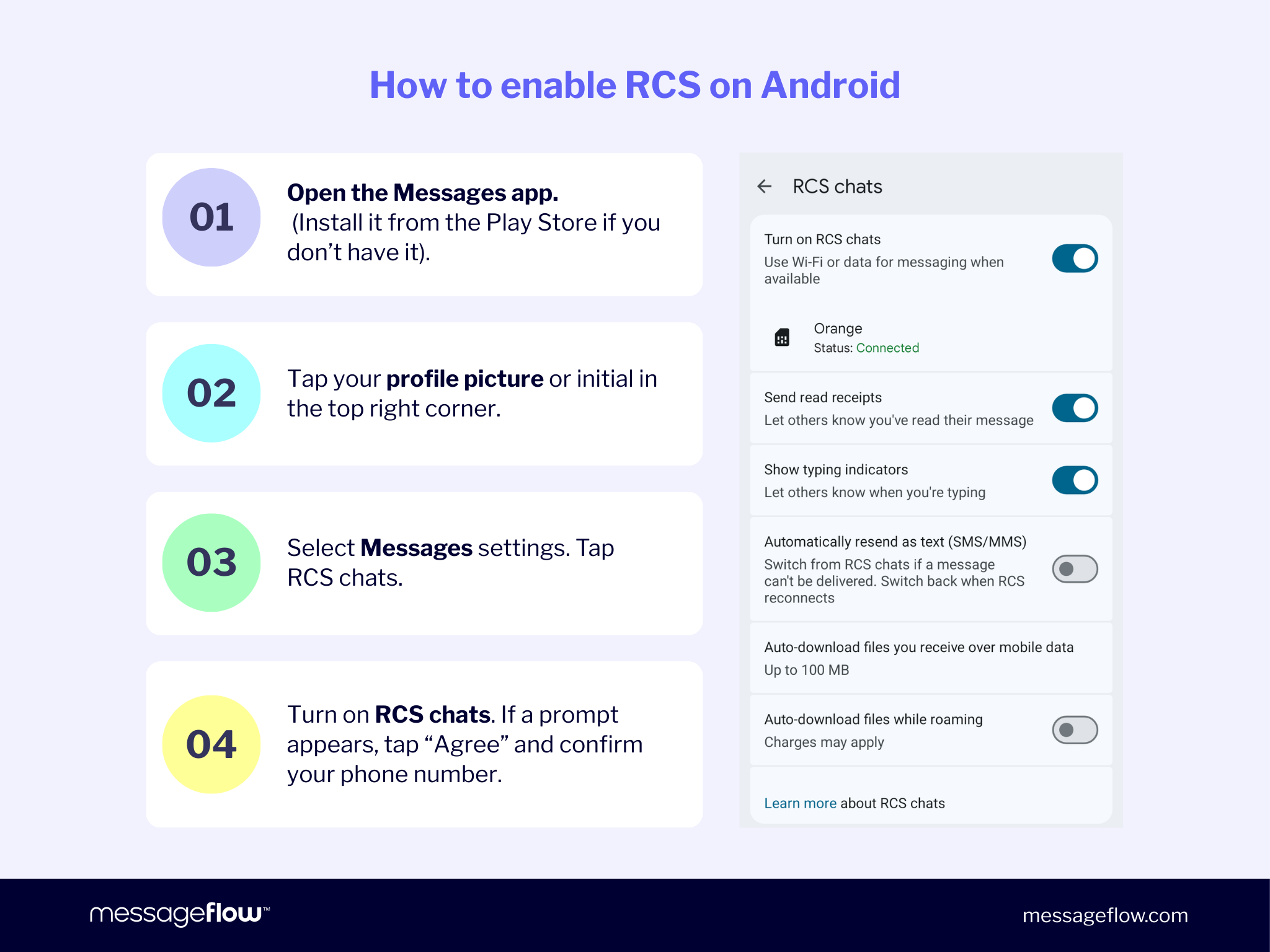
- Open the Messages app. Locate the Google Messages app on your home screen or in the app drawer. The icon appears as a speech bubble.
- Open Settings. Tap your profile picture or the three-dot menu in the top-right corner, then select Messages settings or App settings.
- Find Chat features. Scroll down and look for Chat features, RCS chats, or a similarly named option.
- Enable RCS. To turn on RCS chats, switch on Enable chat features or RCS chats by toggling the control to the right. You can turn RCS chats on or off as needed in this section.
- Verify your phone number. If prompted, confirm your number using a verification code sent via SMS. Once completed, the status should update to Connected.
What does the “Connected” status mean?
When the status shows Connected, RCS is active and working correctly on your device. You can now exchange RCS messages with other users whose devices and carriers also support the standard.
Troubleshooting RCS activation issues
If the status remains Enabling… or Connecting… for an extended period, check the following:
- Internet connection – ensure Wi-Fi or mobile data is enabled
- Airplane mode – confirm it is turned off
- Carrier support – some carriers require additional activation steps
- App version – update Google Messages via the Play Store if needed
If the issue continues, try turning chat features off and back on after a few hours. In some cases, phone number verification can take longer to complete.
How to turn off RCS on Android (step by step)
If you’re looking to disable RCS, follow the steps below. These instructions apply to Google Messages and work on most Android devices.
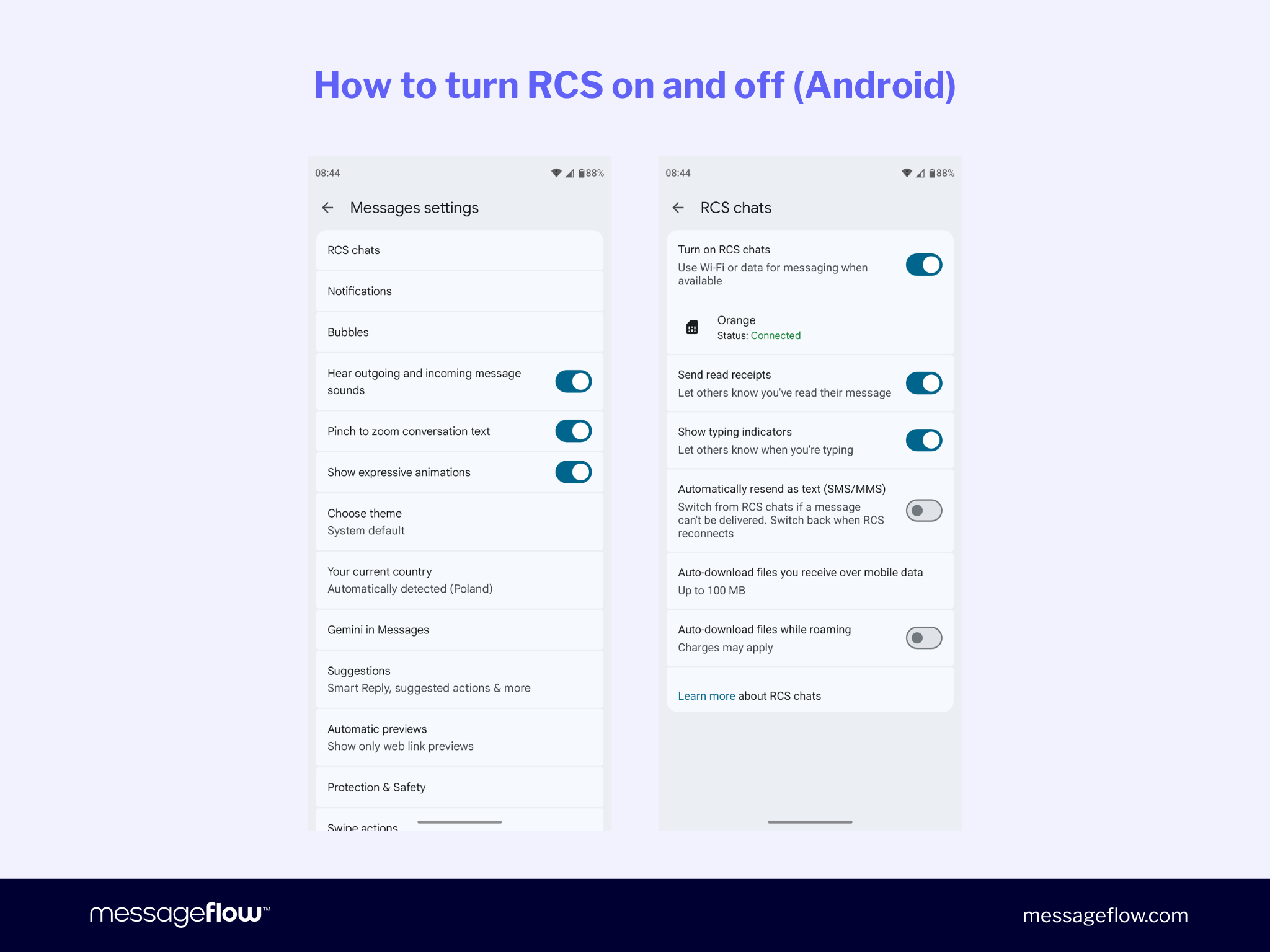
Steps to disable RCS chat
- Open Google Messages on your phone
- Go to Settings by tapping your profile picture or the three-dot menu
- Select Chat features
- Turn off Enable chat features or RCS chats
- Confirm by tapping Turn off if prompted.
What changes after turning off RCS?
After disabling RCS, all new messages are sent as standard SMS or MMS. Messaging continues as normal, but advanced features such as read receipts, typing indicators, and high-quality media sharing are no longer available. Your existing message history remains intact.
Changing your phone or phone number
If you’re switching devices or carriers, keep these points in mind:
- Before giving away your old phone – disable RCS to prevent message delivery issues
- If you no longer have access to the old device – use Google’s official RCS deactivation portal on its support site. You can also sign out or disable synchronization features in Google Fi or Google Messages settings. Additionally, you can stop Google Fi sync through a web browser to disable RCS chats.
- Allow time for changes to apply – server-side updates can take several hours
How to check if RCS is turned off
You can confirm RCS has been disabled in two ways, and if you’re interested in optimizing your communication further, learn more about why using shortened links in SMS messages is beneficial.
- In Chat features, the status shows Off
- When composing a message, the input field displays SMS message instead of Chat message.
You may have noticed that after turning off RCS, certain chat features or indicators in your messaging app have changed, such as the disappearance of typing indicators or read receipts.
How to switch RCS messages to SMS on Android
You don’t always need to turn off RCS entirely. In many situations, it’s enough to send a single message as SMS – for example, when you have a weak internet connection, a limited data plan, or you’re messaging someone who doesn’t support RCS.
Automatic fallback from RCS to SMS
When RCS is enabled but the recipient or network doesn’t support it, Google Messages usually switches the conversation to SMS or MMS automatically. This process happens in the background, without any action required from you.
Example: You send a photo to a contact using an older phone. Google Messages checks whether the recipient supports RCS. If not, the message is sent as MMS instead. Image quality may be reduced, but delivery is not affected.
Manually sending a single message as SMS
If you want full control, you can force an individual message to be sent as SMS or MMS:
- Open the conversation with the selected contact
- Long-press the message before sending, or tap and hold the text input field
- Select Send as SMS/MMS (the wording may vary by app version)
- Send the message – it will be delivered via the cellular network
This approach is useful when data access is unstable or when you want to avoid using mobile data.
Check the message type before sending
Google Messages clearly shows how your message will be sent. Look below the text input field:
- Chat message – RCS is active and requires an internet connection
- SMS or MMS – traditional carrier-based messaging
This label provides a quick confirmation before you hit send.
Managing costs and data usage
If you’re on a limited data plan, switching to SMS can help control costs, especially when sending media files.
Keep in mind:
- RCS uses mobile data or Wi-Fi – rich messages with images or video typically consume 1–5 MB
- SMS does not use internet data – it’s billed according to your carrier’s tariff
- While roaming, RCS may generate additional charges due to mobile data usage.
RCS on iPhone (iOS 18): Enabling, disabling, and limitations
Apple introduced RCS support with iOS 18 in late 2024, primarily to improve messaging between iPhones and Android devices.
iPhone users with iOS 18 or later can manage RCS settings directly through the main system settings. Previously, these conversations defaulted to SMS (green bubbles). With RCS, users can now exchange higher-quality media, delivery receipts, and more structured messages. However, iMessage remains Apple’s primary and default messaging platform between iPhones.
Where to find RCS settings on iPhone
On an iPhone running iOS 18, navigate to:
Settings → Apps → Messages → RCS Messages
Here, you’ll find the toggle for RCS support. The exact wording may vary slightly depending on your region and iOS version.
RCS limitations on iPhone compared to Android
RCS control on iOS is more restricted than on Android:
- Many features are handled automatically, with limited manual control
- iMessage is always prioritized between Apple devices
- End-to-end encryption for RCS follows a different implementation than Google’s
- Some features, such as RCS business messaging, may not be supported
What can you do as an iPhone user?
As an iPhone user, you can:
- Enable or disable RCS via Settings → Messages
- Block RCS business messages using the RCS Business Messages option
- Force SMS usage by disabling iMessage entirely
- Report spam using the Report Junk option for unwanted RCS messages.
Gradual RCS rollout in Europe
RCS on iOS is rolling out gradually across European markets. If you don’t see RCS options yet:
- Make sure your device is running iOS 18.0 or later
- Check with your mobile carrier – activation may be required
- Allow time for future updates, as Apple continues to expand availability.
RCS, Internet usage, costs, and privacy
Before enabling RCS, users often raise the same practical questions: Does it require internet access? Does it create additional costs? And how secure is it? This section addresses those concerns clearly, so you can make an informed decision about when and how to use RCS.
Does RCS use the Internet?
Yes. RCS operates entirely over the internet, using either Wi-Fi or mobile data. This is one of the key differences between RCS and traditional SMS.
In everyday use, this means:
- Without an internet connection, messages automatically fall back to SMS or MMS
- With a weak or unstable Wi-Fi connection, message delivery may be delayed
- When traveling without a data plan, it may be sensible to disable RCS or rely on Wi-Fi only
Example: You are traveling abroad without mobile data access. Disabling RCS ensures your messages are sent as SMS according to roaming tariffs, avoiding unintended data usage.
Is RCS paid? Costs and charges explained
RCS is not a premium service and does not incur per-message fees. There is no charge for sending an RCS message itself. Instead, usage is billed as standard internet data.
| Element | Cost |
|---|---|
| Sending an RCS message | Uses data from the internet data plan |
| SMS / MMS | Charged according to the carrier’s tariff |
| RCS over Wi-Fi | Free, excluding the cost of internet access |
| RCS while roaming | Uses roaming data |
Most European mobile operators – including Orange, Vodafone, and O2 – support RCS at no additional cost. That said, it is worth reviewing your mobile plan, particularly if you frequently share high-resolution media or use RCS while roaming, as these activities can increase data consumption.
Privacy and security – What you should know about RCS
RCS introduces features such as read receipts and typing indicators. For some users, these improve transparency and responsiveness. For others, they raise privacy concerns. The good news is that these features are optional.
If you prefer greater control over your privacy, you can:
- Disable read receipts in chat feature settings
- Turn off typing indicators to avoid showing when you are composing a message
Encryption and data protection
RCS security continues to evolve. Google Messages has supported end-to-end encryption for one-to-one conversations since 2021. However, security standards vary depending on the messaging app and the mobile operator.
For this reason, it is not accurate to claim full or universal encryption across all RCS implementations. To stay protected, users should:
- Keep the messaging app updated
- Regularly update the operating system
- Use official, trusted messaging clients
These steps ensure access to the latest security improvements as they become available.
RCS in business communication
Shifting from individual use to a business perspective, RCS and SMS work best together. Combined, they allow brands to reach customers more reliably and more effectively. This omnichannel approach is increasingly becoming the standard for modern customer communication.
What is RCS Business Messaging (RBM)?
RCS Business Messaging (RBM) is a business-grade version of RCS that enables interactive, visually rich conversations with customers – without requiring any additional app installation.
With RBM, businesses can send:
- Rich product cards with images, pricing, and CTA buttons
- Product carousels suited for e-commerce and multi-offer campaigns
- Interactive buttons such as “Buy now,” “Book an appointment,” or “Learn more”
- Messages from a verified brand profile, reinforcing trust and recognition
According to GSMA data from 2024, RCS messages achieve an average open rate of 47 percent, compared to approximately 12 percent for SMS. Click-through rates for RCS campaigns reach 15–20 percent, versus 5–7 percent for SMS.
SMS fallback – Guaranteed campaign reach
Not every recipient supports RCS or has consistent internet access. SMS Fallback addresses this limitation.
On the MessageFlow platform, campaigns can be designed as RCS-first. If a recipient does not meet the technical requirements, delivery automatically switches to SMS. This ensures every message reaches its destination, regardless of device or connectivity.
Omnichannel approach in practice
Effective customer communication rarely relies on a single channel. MessageFlow integrates RCS, SMS, email, and mobile push notifications into one unified ecosystem, enabling consistent, multi-step engagement.
Example communication flow:
- RCS offer – a rich message with visuals and CTA buttons
- Follow-up email – detailed content for engaged users
- SMS reminder – a concise message before the offer expires
- Mobile push notification – instant updates such as order status
Each channel plays a distinct role, together creating a seamless and coherent customer experience.
FAQ – Common Questions About Turning Off RCS
Find answers to questions that arise most frequently and are not explicitly addressed in the main parts of the article.
No. Your message history remains on your device. Disabling RCS only affects how new messages are sent, switching them to SMS or MMS. All previous conversations, images, and videos remain accessible.
RCS uses internet data, which may incur roaming charges. You can manage this in several ways:
- Turn off RCS entirely
- Disable mobile data while roaming and use Wi-Fi only
- Use SMS messages billed according to roaming tariffs
Reviewing your roaming data package before traveling helps you choose the most cost-effective option.
RCS reach continues to grow, with approximately 1.5 billion monthly users worldwide, but coverage is not universal. This is why SMS Fallback is essential. Solutions like MessageFlow automatically select the best available channel for each recipient, ensuring no critical message is missed.